Tuesday, October 29, 2013

Apple Configurator Update Brings Improved Configuration and MDM Enrollment of Apple TV

Apple has released a minor update to Apple Configurator that brings improved configuration and MDM enrollment of Apple TV.

Apple Configurator makes it easy for anyone to mass configure and deploy iPhone, iPad, and iPod touch in a school, business, or institution. Three simple workflows let you prepare new iOS devices for immediate distribution, supervise devices that need to maintain a standard configuration, and assign devices to users. Quickly update your devices simultaneously to the latest version of iOS, configure settings, and install apps and data for your students, employees, or patrons.

Apple Configurator can be used by larger organizations and businesses to set up new devices, install enterprise apps, and enroll each device with a Mobile Device Management solution for remote management by an IT administrator. It is perfect for the classroom or student lab where devices need to be quickly refreshed and kept up to date with the correct settings, approved policies, apps and data. Apple Configurator can also be used to personalize devices with data and documents for specific users.


Prepare devices
• Configure multiple devices simultaneously
• Update devices to the latest version of iOS
• Create and restore a backup of settings and app data from one device to other devices
• Import apps into Apple Configurator and sync them to new devices*
• Use the built-in editor to create and install iOS configuration profiles
• Enroll devices with your Mobile Device Management solution for remote management

Supervise devices
• Organize supervised devices into custom groups
• Automatically apply common configurations to supervised devices
• Quickly reapply a configuration to a supervised device and remove the previous user’s data
• Import apps into Apple Configurator and sync them to supervised devices*
• Define and apply common or sequential names to all devices
• Restrict supervised devices from syncing with other computers

Assign devices
• Add users and groups manually or autopopulate via Open Directory or Active Directory
• Check out a device to a user and restore the user’s settings and data on that device
• Check in a device from a user and and back up the data for later use, possibly on a different device
• Apply custom text, wallpaper, or the user’s picture to a device’s Lock screen
• Import and export documents between your Mac and Apple Configurator
• Sync documents between assigned devices and Apple Configurator


What's New In This Version:
Apple Configurator 1.4.2 contains improvements and bug fixes including:
• Improved configuration and MDM enrollment of Apple TV

It also includes the following changes from Apple Configurator 1.4.1:
• Configure which Setup Assistant steps will display during device setup
• Enroll multiple unsupervised devices in MDM without tapping each device using a new Setup tab in Prepare
• Complete Setup Assistant and enroll Apple TV in MDM without using the remote
• Improved UI for installing a single profile on unsupervised devices
• Support for new iOS 7 features and restrictions, including:
• Allow modifying account settings
• Allow AirDrop
• Allow connecting supervised devices to any Mac
• Configure Web Content Filter
• Configure AirPlay mirroring destinations and passwords
• Configure AirPrint printers
• Configure Managed Open In
• Allow Control Center or Notification Center on lock screen
• Configure Limit Ad Tracking setting
• Install fonts

You can download Apple Configurator from the App Store for free.

Monday, October 28, 2013

How to Turn Off Automatic App Updates in iOS 7


Automatic Updates is a feature that came along with iOS 7 which allows updates to installed apps to download and install themselves, allowing for a very hands-off approach to the app updating process. For many users this is a good thing to leave on, since it takes the hassle out of updating and managing your apps, and you’ll only have to use the App Store to download new apps instead. But automatic updates are not always a desirable feature for all users for a variety of reasons, whether you’re trying to squeezes maximum performance out of a device, reduce overall network bandwidth used by an iPhone or iPad, or perhaps you’d just prefer to control the app updating process yourself. If you’d rather have apps not update themselves in the background, you can take a moment to turn the feature off.

Stop Apps Updating Themselves Automatically
  • Open Settings and go to “iTunes & App Store”
  • Scroll down to the “Automatic Downloads” section
  • Toggle “Updates” to OFF to stop apps automatically updating


That’s it, no more automatic app updates, no more surprises when opening apps to find things have changed. Remember, with this feature turned OFF you will need to use the App Store to handle updates yourself, similar to how it was done in the past with all iOS releases pre-7.0.
Turning off Automatic Updates has a few additional side benefits too; it can help increase battery life, and it can also help to speed up iOS 7 equipped devices a bit, particularly older models. Both benefits are a result of reducing background activity and resource usage, and though the newest model iPhone and iPad devices may not notice them quite so much, they can still offer a nice increase to performance all around.

Use Automatic Updates from Wi-Fi Only
If you’d prefer to leave automatic updating on for wi-fi only while preventing it from happening over a cellular data connection, you can do that too with a simple adjustment within the “iTunes & App Store” settings: simply keep Automatic Downloads “Updates” toggled to ON, but toggle “Use Cellular Data” to OFF. Unless you have an unlimited cellular data plan with your iPhone or iPad, it’s probably a good idea to keep cellular data updating completely off.

Will this Stop the Random Blue Dots Next to App Names? Yes, this will stop the blue dot from randomly appearing next to app names on your iOS home screen. For those who weren’t aware, the blue dot is an indicator that an app has been updated, or that an app is new to the device, but it has also caused a ton of confusion for many users who wonder why on earth a mysterious blue dot seems to show up alongside app names for seemingly no apparent reason.

Turning off automatic updates will prevent it from showing up at random, and instead the blue dot will only appear when you have updated an app yourself, or downloaded something new from the App Store. You can not disable the blue dot completely.

Tuesday, October 22, 2013

Apple Online Store Goes Down Ahead Of Today’s iPad Event


Apple to broadcast special media event today via Apple TV, Safari browsers

“Apple will webcast today’s special event at 10am PDT / 1pm EDT today from the Yerba Buena Vista Center for the Arts in San Francisco, California via Apple TV.
Expected at today’s special event: new iPad, new iPad mini, bother featuring Touch ID, an 64-bit Apple A7X chips, along with info about Mac Pro and OS X Mavericks releases or release dates, an updated iPod touch, and possibly more.

Apple will also webcast to Safari users on OS X and iOS here. Live Streaming video requires Safari 4 or later on OS X v10.6 or later; Safari on iOS 4.2 or later. Streaming via Apple TV requires second- or third-generation Apple TV with software 5.0.2 or later. 

Saturday, November 3, 2012


BRAVEN SIX Series:The World's Most Talented Speakers


BRING STUNNING AUDIO TO LIFE
Wherever you go, whatever you do BRAVEN gives you the
freedom to amplify your mobile life. 
  • Stunning HD Audio
  • Durable and stylish aluminum construction looks great
    and goes anywhere
  • Up to 20 hours of wireless play time
  • Charge your mobile devices on the go 
SOCIALIZE YOUR MEDIA 
SHARE WHAT MOVES YOU WITH THE WORLD. FROM MUSIC TO MOVIES, 
& games to FaceTime, BRAVEN allows you to connect with the world around you. 
  • High-fidelity room filling sound
  • Wirelessly stream music, movies, games, calls and chats like Skype & FaceTime
  • Daisy-chain multiple speakers together for even bigger sound
  • Make any speaker a Bluetooth speaker 

RECHARGE YOUR DEVICE AND PLAY LONGER
Ever find yourself running low on battery & start scrambling
for the nearest outlet? Use your BRAVEN speaker to resuscitate your mobile life. 
Anywhere. No outlet required.
  • Never run out of power
  • Stream wirelessly and charge your mobile device
  • Charge an iPhone (or equivalent) from dead to full

  • http://www.braven.com

Sunday, May 13, 2012

Apple Hardware Repair


Apple/Mac Repair


OneiMac now offers repair for your Mac. From broken screens to broken iPhones, memory boards, hard drives and more. Contact us at for a quote.


Friday, December 30, 2011

Apple Keyboard with Numeric Keypad Problems

If you are unable to type letters, numbers, or symbols, you may have Mouse Keys enabled on a keyboard that has no numeric keypad or Num Lock key.


It happen to me this week, I was entering a password which had numerical numbers and I was using the numerical pad on the right side of my keyboard and I kept getting the wrong password message. I used the numbers above the letters on the keyboard and they worked. 


So I thought I had a bad keyboard, until I did a simple search and there it was at Apple support, "Unable to type while Mouse Keys is enabled in Mac OS X" posted December 05, 2011. 


Seams like I wasn't the only one having this problem.


Quick fix:
  

  1. Choose System Preferences from the Apple menu.
  2. Choose Universal Access from the View menu.
  3. Click the Mouse tab or in Lion Click Mouse & Trackpad
  4. Click Off, next to Mouse Keys.  If you have already logged in as a different user where Mouse Keys is disabled, click On and then click Off next to Mouse Keys, to return the keyboard to normal operation.
Note: You may also check/uncheck the box for "Press Option key five times to turn Mouse Keys on or off". 

Note: If you are logged on to a user where Mouse Keys is already disabled, but your keyboard is not responding properly, toggle the radio buttons for Mouse Keys "On" then "Off" to restore normal functionality.


Wednesday, October 5, 2011

Live Each Day as if it's Your Last


Your Spirit will be with us Always!

Friday, August 19, 2011

Save Your Battery - On your Laptop

FlashFrozen maybe the answer to your short battery life. If you use Google Chrome, Firefox 4, and in Safari on 64-bit Macs, the Flash plug-in is pushed onto its own process. FlashFrozen lives as a tiny menu app, monitoring this process and will warn you (by turning red) if Flash is using a relatively significant amount of processor cycles. You can then go to FlashFrozen's menu to kill the Flash plug-in.

Any running Flash content is replaced with the broken plugin icon. Want to get Flash working again? Simply reload the page, or go to a new one. The next time Flash is needed, it'll come back to life. Flash ads or other Flash-related junk forces our processors to run hot and leech our precious battery fluids.

Flash animations and videos are among the top processor hogs on Mac OS X. A single poorly-designed Flash banner - even in an inactive window or tab - can suck up an entire processor core with its shady mortgage offers.

Your 5-hour battery life gets cut in half, your laptop runs hotter, and your legs cook to medium-rare.

That's where FlashFrozen comes into play.

FlashFrozen lets you stop the Flash plug-in dead in its tracks, letting your new-fangled Mac cool down, use less power, and give you more time to do whatever it is you do. Probably blog or tweet or something.

And the new AutoKill mode actively stops Flash at all times. Turn this on and off at will to save even more battery life. 


Thursday, July 7, 2011

iPad HD coming this Fall - it will run Final Cut Pro.

Our sources are saying that not only will there be a newly designed iPhone coming in the fall, but there is going to be a new entry into the iPad family as well. The new tablet is said to sport a double resolution screen (2048 x 1536), and will be dubbed the “iPad HD.” The idea behind the product is apparently that it will be a “pro” device aimed at a higher end market — people working in video and photo production possibly — and will be introduced alongside something like an iPad version of Final Cut or Aperture. This product is specifically said to not be the iPad 3, rather a complimentary piece of the iPad 2 line. 

Monday, July 4, 2011

How to Close Your iPad Apps


Since the introduction of Multitasking to iOS, you can now run more than one program on your iDevice at the same time. That doesn’t mean you always want them open though – so this  will show you how to close (or quit) any program running on your iPad, iPhone or iPod Touch.
  1. Start out by “double-clicking” the Home button on your iPad, iPhone or iPod Touch. The Home button is the one at the bottom of your iDevice, as illustrated in the image below.
  2. the ipad iphone and ipod touch home button
  3. This will bring up the ‘list’ of currently running Apps – by way of an “App bar” at the bottom of your screen. Tap and hold down on any one of the currently running Apps (even if it’s not the one you want to close).
  4. You’ll notice that each App will start to “wiggle” and now has a small “minus sign” circle in the upper left corner. Tap the “minus sign” of the App you want to close/quit.
  5. That App will now close. NOTE: This will close the App, not delete it. 
  6. You can continue tapping the “minus signs” to close all open Apps, if needed.
  7. That’s it!

Wednesday, June 8, 2011

Opena iPhone 4 case - Opens Bottles - Corona Time

The awesomeness you see above is an iPhone 4 case dubbed the Opena. It is the result of the work by Melbourne, Australia-based industrial designer Chris Peters and Rob Ward, a former Toolmaker.   The pitch?

 "The idea for The Opena came to us one afternoon when we were out having some beers. Some people have bottle openers on their keyrings, but many times you don’t always have your keys with you. But what is always with you? Your phone!"

The injection-moulded case is machined from solid blocks of ABS plastic while the bottle opener part is stamped out of food-grade stainless steel. The final production-spec Opena case will have a fine satin textured surface finish. They are raising $15,000 on Kickstarter to complete the project – it’s costly due to the tooling and 3D CAD technology involved. You can secure yourself one the first Openas for just fifteen bucks. We just hope opening bottles with this thing won’t scratch or break the iPhone 4′s glass back.


Tuesday, June 7, 2011

17 popular apps Steve Jobs just killed


Yesterday, just in case you were not online, was Apple’s annual WWDC event. The enhancements Apple made to iOS, Mac OS, and the entire Apple ecosystem were revolutionary. 


The following is a list of app categories, represented by one example, that will surely suffer from the new and integrated features in iOS 5.

1: Boxcar (Notification Apps)
2: Dropbox (Cloud syncing apps)
3: WhatsApp/Kik (Free messaging apps)
4: QuickPix (Camera- enhancing apps)
5: Instapaper (Read later apps)
6: Twitpic (not an app)
7: Remember the Milk (Reminder apps)
8: Photoshop Express (Photo Editing apps)
9: Echofon/Tweetdeck (Twitter apps)
10: Instagram (Photo Sharing apps)
11: Pulse (Reader apps):
12: iChromy (Browsers)
13: Wifi Photo (Wifi syncing apps)
14: Dictionary (Translation apps)
15: Gmail (Web app)
16: Find my iPhone
17: iTunes: “For the first time ever, you can now own an iOS device, without a computer. No more need for iTunes and all that wasted syncing time. You can set up the device wirelessly, back up your files wirelessly, and sync your device wirelessly. This is huge. I have two words for you, Apple. Good riddance. And here are some more words I have been waiting to say for a long time. Bye bye iTunes, hello wireless syncing. I don’t know you yet but I think I love you!”

Friday, June 3, 2011

iCloud will it be free or will it be $25/year


Nobody knows for sure what Apple has in store Monday when it introduces, iCloud, the company's newest cloud service offering. Will iCloud absorb MobileMe--Apple's calendar, e-mail, and contacts sync service -- or will it stand alone? Does Apple have plans for a new file sync feature that will seamlessly unify files on your iOS devices with your Mac or Windows PC?

Several pictures taken outside of Moscone West, where WWDC will be held, capture banners bearing the word "iCloud" together with an icon and a huge banner depicts Mac OS X Lion, iOS 5, and iCloud as being the three components adding up for WWDC 2011. Additional banners hung from the ceiling are still under wraps. In previous years, Apple has kept some of these banners under wraps until the Keynote presentation."


Tuesday, May 31, 2011

iWork now available for iPhone, iPod Touch


In addition to the iCloud announcement, Apple® today announced that its groundbreaking iWork® productivity apps, Keynote®, Pages® and Numbers®, are now available for iPhone® and iPod touch®, as well as iPad®. Created for the Mac® and then completely redesigned for iOS and Apple’s revolutionary Multi-Touch™ interface, Keynote, Pages and Numbers allow you to create and share stunning presentations, beautifully formatted documents and powerful spreadsheets on the go. iWork apps are available on the App Store™ for $9.99 each to new users and as a free update for existing iWork for iPad customers.

“Now you can use Keynote, Pages and Numbers on iPhone and iPod touch to create amazing presentations, documents and spreadsheets right in the palm of your hand,” said Philip Schiller, Apple’s senior vice president of Worldwide Product Marketing. “The incredible Retina display, revolutionary Multi-Touch interface and our powerful software make it easy to create, edit, organize and share all of your documents from iPhone 4 or iPod touch.”


Keynote, Pages and Numbers import and export documents from iWork for Mac and Microsoft Office; print wirelessly using AirPrint™; and include beautiful Apple-designed themes and templates. All iWork apps now include improved document management with thumbnail images that let you find your files quickly, organize them and group them into folders using intuitive gestures. From the Tools button in the toolbar, you can easily share any presentation, document or spreadsheet without leaving the app.

Keynote makes it easy to create impressive presentations, complete with animated charts and transitions. You can play your presentation in Full Screen view on the stunning, high-resolution Retina™ display or connect to a projector or HDTV for a large audience. Available separately, the Keynote Remote app allows your iPhone or iPod touch to control a Keynote presentation on any iOS device or Mac.
Pages is the most beautiful word processor ever designed for a mobile device and has everything you need to create amazing documents. Pages takes full advantage of the high-resolution Retina display on iPhone 4 and iPod touch so you can see all the detail and richness of your documents. To make working with text easy on iPhone and iPod touch, Smart Zoom automatically zooms in to follow the cursor while you’re editing and zooms back out when you’re done.

Numbers uses Multi-Touch gestures and an intelligent keyboard to help you create compelling, great-looking spreadsheets with over 250 easy-to-use functions, flexible tables and eye-catching charts. Just like Pages, Numbers takes advantage of the high-resolution Retina display and Smart Zoom to make working with text and cells on iPhone 4 or iPod touch easy.


Click Here!


Thursday, May 26, 2011

iSync is missing in Lion


The iSync application lets you automatically transfer information from iCal calendars and Address Book contacts on a Mac to your third-party mobile device.  For example, your third-party mobile phone device can be synchronized using iSync to display your latest events, and your contact list can always be up-to-date with your Mac.
Lion users are saying that iSync is nowhere to be found in Apple's next OS, along with FrontRow, Java runtime and Rosetta. 
From Mobileme to iCloud ...


Wednesday, May 25, 2011

Sparrow - The new gmail for Mac


Sparrow now supports General IMAP - Google Mail, Mobile Me, Yahoo, AOL and any custom IMAP account. Sparrow is a minimalist mail application designed to keep things simple and efficient. Nothing fancy just your email and nothing else.


  • Full IMAP support - Sparrow now supports all IMAP accounts, including: Gmail, Mobile Me, Yahoo, and custom IMAP.
  • Multiple accounts - Plug as many accounts as you want in Sparrow and seamlessly switch from one to the other.
  • Conversations - Quickly flick through threaded mail conversations like never before.
  • Labels - Create and edit Labels straight from within Sparrow. Easily keep a clean and tidy inbox.
  • Quick replies - Replying your mail has never been so simple. Click, write and send in the same window.
  • Formatting bar - Sparrow makes it easy to change font styles, format lists, and more.
  • Inline attachments - Drag & drop images and documents straight into your mail.
  • Notifications - Stay up to date with your mail stream on selected accounts
  • Menu bar notifications - Always keep an eye on your inbox.


Friday, May 20, 2011

Your machine has been infected with viruses that only a "MacDefender" app can remove. "Only" is the key word.

First Off:

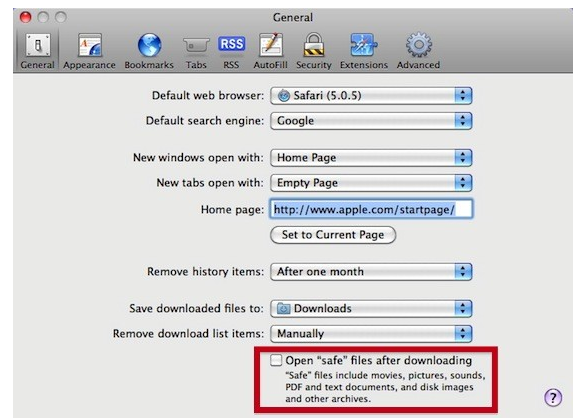
You can limit your exposure to these kinds of scams and malware. The malware targets Safari, so follow these steps to protect your Mac:

1 - Launch Safari.
2 - Select Preferences > General from the Safari menu.
3 - Uncheck the "Open 'safe' files after downloading" box found in the area I've outlined in red below:

What a MacDefender attack looks like


MacDefender attacks your Mac from any site on which a hacker has installed a custom JavaScript. Visiting a web page that you believe is benign runs a JavaScript that redirects you to a malicious website. These sites are changing from day to day, so it's virtually impossible to block them.
Once your browser has been directed to the malevolent site, you'll see a page very similar to the one seen at the top of this post. It's telling you that your Mac is infected with viruses. As mentioned earlier, hackers are already changing the look of the malicious websites, so don't expect the page to look exactly like this.
Usually, just visiting the bad website downloads a file to your hard drive. That file is generally named something like BestMacAntivirus2011.mpkg.zip or anti-malware.zip, but the name may be different. Keep an eye on your downloads folder and keep it clean so that any new downloads that cause the folder to "bounce" will catch your attention, and you may catch that the malware file has been downloaded. It has an extension of .mpkg and a name of MacDefender, MacSecurity, or MacProtector. If you see this file in your downloads folder, put it into the Trash, empty the Trash, and you've just saved your Mac from the malware.
If your Mac is set up to automatically open "safe" files, you still have a chance to keep MacDefender off your machine. In this case, the file is unzipped and the installer package (a file with an .mpkg extension) launches. You're going to see a standard installer window that looks something like this:


Go Back and Delete...


Monday, May 16, 2011

GoFlex Satellite offers wireless hard drive for iPad's

Seagate introduced the GoFlex Satellite, a portable, battery-powered hard drive targeted for iOS devices. The external hard drive includes an iOS app for the iPad, iPhone or iPod touch that lets you browse and view multimedia files stored on the drive. Different than most external drives, the GoFlex uses WiFi to share its data with up to three WiFi-enabled devices at the same time. If you need faster transfers, an included cable lets you connect the drive to any USB 3.0 port. The battery-powered drive delivers five hours of continuous usage and 25 hours in standby mode. The drive ships in a single 500 GB capacity option (US$199) and is available for pre-order now from Seagate, Amazon and Best Buy. The drive should hit U.S. retail shelves in July and international retailers later this summer.


Thursday, May 12, 2011

Twitter Blog - A better app for your mobile browser

We want you to be able to access Twitter no matter where you are; regardless of what device you use; or, whether you prefer to access Twitter through a mobile application or the browser. Today, we’re starting to roll out a new version of twitter.com for mobile devices. This web app allows us to provide a high-quality and consistent Twitter experience on high-end touchscreen devices – whether or not an official Twitter application is available. It was built from the ground up for smartphones and tablets, which have more advanced browsers that support the latest web technologies, including HTML5.

The app is fast – you can quickly scroll through your timeline, move between tabs and compose Tweets. It’s rich – it takes advantage of capabilities that high-end device browsers offer, such as touch gestures and a large screen. And it’s simple – it’s easy-to-use and has the features you’d expect from a Twitter application, including your timeline, @, messages that you can read in conversation view, search, trending topics, lists, and more.


We are releasing this application today to a small percentage of users on iPhone, iPod Touch, and Android smartphones, and we’ll be rolling it out to additional folks with those devices in the coming weeks. You can use Twitter on your phone’s browser by going to twitter.com. If you don’t yet have access to the new web app, you’ll still be able to use the existing version of twitter.com for mobile browsers.
Twitter Blog